
Church Staff Using Granola Should Turn Off This AI Training Setting ASAP
Jul 20, 2026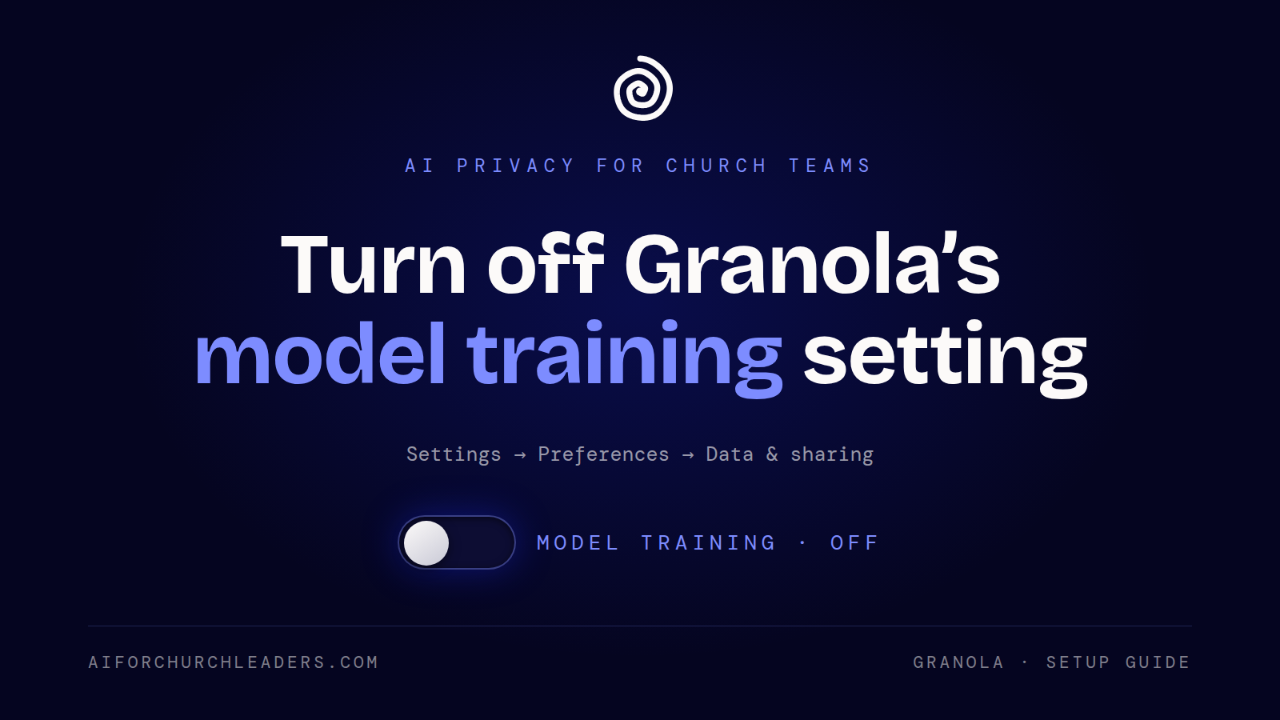
Granola can use anonymized data from your church staff meetings to improve its AI. One setting stops it. Turning it off takes about a minute.
Granola is an AI meeting assistant that can save church staff hours of work. It transcribes a meeting, organizes the discussion, summarizes decisions, and builds a list of next steps. That is useful after staff meetings, ministry planning sessions, vendor calls, and volunteer team conversations.
Granola may use anonymized data from non-Enterprise accounts to improve its services. The company lets users on every plan opt out of this model training through their settings. Enterprise organizations are opted out by default, and their admins can enforce the setting across the workspace. Many church staff are on Free or Business accounts, so the opt-out is on them.
Start with what the setting actually controls.
What Does Model Training Mean?
AI systems improve by studying examples.
Granola says it may use anonymized data from customers to evaluate and improve its own services. Granola also says that third-party providers such as OpenAI and Anthropic are contractually prohibited from using customer data to train their models.
Those are two separate questions.
Third-party training asks whether an outside AI company can use your meeting information to improve its general models. Granola training asks whether Granola can use anonymized information from your account to improve its own product.
Granola removes identifying information before using data this way. That helps. Anonymized data still comes from real conversations that happened inside your church.
For most churches, the safest choice is to opt out.
How to Turn Off Model Training in Granola
Use the Granola desktop application on your Mac or Windows computer.
Step 1: Open Granola
Launch the app and make sure you are signed in to the correct account.
This matters when you belong to more than one workspace. A personal account and a church workspace may have different settings.
Step 2: Open Settings
Click your profile or account menu, then select Settings.
Step 3: Open Preferences
Look for Preferences in the Settings sidebar and select it.
Step 4: Open Data & Sharing
Inside Preferences, choose Data & sharing. Granola’s documentation points here for the model training preference.
Step 5: Turn Off the Model Training Option
Find the option that allows Granola to use your data to improve its models or services, and turn the toggle off.
The exact wording may change as the app gets updated. Look for language such as:
- Improve models
- Model training
- Improve Granola
- Use anonymized data
Step 6: Verify the Change
Close Settings. Open it again and return to:
Settings → Preferences → Data & sharing
Confirm the toggle is still off. Church administrators may also want staff to take a screenshot of the setting for internal records.
What Changes After You Opt Out?
Turning off model training leaves Granola’s main features intact.
You can still use Granola to:
- Transcribe meetings
- Generate notes
- Summarize conversations
- Identify decisions
- Produce action items
- Ask questions about meeting content
The setting controls whether anonymized data from your account can be used to improve Granola’s models and services. Granola still processes your meeting information to deliver the features you asked for.
Think of it like hiring an outside note-taker. The person still needs to hear the meeting to produce the notes. The opt-out tells the company to keep your meetings out of its training examples.
What Should Business Plan Customers Know?
Granola says users on any plan can opt out of model training.
Churches on a Business workspace should confirm the setting for every staff member. One employee’s preference covers that one account and nothing else.
A rollout process for Executive Pastors and church leaders could look like this:
- Send written instructions to every user.
- Ask each user to disable model training.
- Have users confirm completion.
- Recheck the setting after major account or workspace changes.
- Include the requirement in the church’s AI use policy.
Review the default sharing permissions while you are in there. Granola lets Free and Business users choose whether new notes are private, limited to the company, or open to anyone with the link. A change to this default applies only to notes created afterward. Older notes keep their original settings.
For most church teams, Private is the safest default. Staff can share individual notes later when collaboration calls for it.
What Should Enterprise Customers Know?
Granola opts Enterprise organizations out of model training by default, and administrators can enforce the setting across the entire organization.
Verify it anyway. Defaults change, workspaces get reconfigured, and staff members sometimes keep personal accounts outside the managed workspace.
Churches using Enterprise should confirm:
- Organization-wide model training is disabled.
- Staff use their managed church accounts.
- Sharing controls are restricted appropriately.
- Public note links are disabled when unnecessary.
- Former employees lose access promptly.
- Connected applications get reviewed regularly.
Enterprise administrators can also control workspace-wide note sharing. Granola offers options that permit public links, limit access to authenticated members of the company, or require an explicit invitation.
Which Meetings Belong in an AI Note-Taker at All?
The model training setting is one piece of responsible AI use.
Granola still needs to process a conversation to create a transcript and summary. So church leaders have to decide which meetings belong in an AI tool in the first place.
Some conversations carry information that should stay out of a general AI meeting assistant:
- Pastoral counseling
- Prayer requests containing medical details
- Abuse allegations
- Safeguarding investigations
- Staff discipline
- Employment disputes
- Salary discussions
- Donor financial information
- Benevolence requests
- Legal strategy
- Passwords or account credentials
- Confidential board deliberations
- Information about children or vulnerable adults
Granola states that it is not HIPAA compliant and should not be used to store or process protected health information.
Churches run into health information constantly. It shows up in prayer, care, counseling, and benevolence conversations. Train staff to recognize it before they turn on an AI transcription tool.
Do Meeting Participants Need to Know?
Yes. Tell people when AI transcription is running.
Granola recommends asking for consent before transcribing other people. The company also notes that consent requirements vary by location, and it places the responsibility for getting consent on you, the customer.
The stakes are higher in a church setting. People share things with a pastor or ministry leader that they would never say in a typical business meeting.
A verbal disclosure can be as plain as this:
“I use an AI note-taking tool to create a transcript and summary of this meeting. Are you comfortable with me using it for this conversation?”
Say it out loud at the start. Skip the buried line in a calendar invitation that attendees may never read.
Granola also offers transparency features that can post an automated message in a virtual meeting chat or display a visible indicator while transcription is active. Those help. Consent still requires an actual conversation when the law or the relationship calls for one.
Does Granola Store the Meeting Audio?
Granola says its Mac and Windows applications discard meeting audio and keep the transcript. On an iPhone, Granola caches audio temporarily while processing the meeting and deletes it after transcription is complete.
That is a real safeguard. The transcript still holds nearly every important detail from the meeting, and a transcript is easier to search, copy, forward, and share than an audio recording.
Treat transcripts as confidential records.
Review Your Sharing Settings Too
Model training and note sharing are separate controls. A user could turn off model training and still create a link that exposes meeting notes to other people.
Each note can carry its own sharing permissions. Free and Business users can also set a default for future notes:
- Anyone with the link can view
- Only people at the company can view
- Private
Changing the default leaves existing notes untouched, so review both new and old notes. Pay special attention to anything containing names, personal stories, financial information, personnel matters, or ministry care details.
A Practical Policy for Churches
Five clear rules cover most of what a church needs to start using Granola responsibly.
1. Turn Off Model Training
Require every user to disable Granola’s model training option unless an Enterprise administrator has enforced the opt-out.
2. Keep Notes Private by Default
Staff should share notes only with people who have a legitimate ministry or operational need to see them.
3. Obtain Consent
Tell participants when a meeting is being transcribed. Ask for permission before beginning.
4. Prohibit Sensitive Use Cases
Create a written list of meetings where AI transcription is off limits.
5. Delete Notes on a Schedule
Set retention periods by meeting type. Routine planning notes can go after a few months. Personnel, counseling, legal, safeguarding, and donor information need different handling, and some of it belongs outside Granola entirely.
Sample Church Policy Language
Churches can adapt the following language:
Staff members using Granola must disable the use of meeting data for model training before using the service for church business. Meeting notes must remain private unless access is intentionally granted to an authorized person. Staff must notify participants and obtain any required consent before transcription begins. Granola may not be used for pastoral counseling, protected health information, abuse or safeguarding reports, legal discussions, personnel investigations, donor payment information, passwords, or other highly sensitive conversations. Staff members are responsible for reviewing and deleting transcripts according to the church’s records retention policy.
A policy works when staff understand the reason behind it. This is stewardship of information people entrusted to the church.
Start Before the Next Meeting
Granola can save your team real hours when it is set up with intention and used in the right meetings.
Open Settings → Preferences → Data & sharing. Turn off the option that allows anonymized data to be used for model improvement. Then set notes to Private, write your prohibited meeting list, and decide how your team will ask for consent.
Which meeting on this week’s calendar should never be transcribed? Start your list there.