Hey friend!
Back in April, OpenAI shipped ChatGPT Images 2.0 (Image 2), the most capable image generator any church has ever had access to.
Most church teams still pay for stock photos, wrestle with Canva templates, or wait days for a volunteer to send back a sermon graphic. Visuals drive almost everything your church does online now, from the post on Instagram to the slide behind your pastor on Sunday. Two skills make all of it doable: writing a good prompt, and pointing it at the right model.
Today I'll cover both, walk you through the 7 graphics your church needs with the exact prompts, and hand you the one system that makes everything you create look like it came from the same design studio.
Let's dive in.
Every good image prompt is built from the same parts.
Whatever tool you use, a strong prompt spells out six specific things and leaves nothing to the model's guesswork.
The subject is what actually sits in the frame. The style is the look you want, like a photo, flat vector art, watercolor, or clean line art. The composition tells the model how to frame the shot and where to leave empty space for your text. The lighting and mood set the feeling, like soft studio light or warm morning glow. Text and references matter too, so spell out any exact words you want rendered, and upload a photo when you need a face or your brand colors to stay consistent.
The size is the one people get wrong most often. Ask for the wrong dimensions and your graphic shows up cropped or blurry on the platform you needed it for. Here are the standard sizes worth memorizing:
- 1080 x 1080 (square): the default Instagram and Facebook feed post.
- 1080 x 1350 (portrait, 4:5): the taller feed post that fills more of the phone screen and earns more reach.
- 1080 x 1920 (vertical, 9:16): full-screen Instagram and Facebook Stories and Reels.
- 1920 x 1080 (widescreen, 16:9): sermon slides, website banners, YouTube thumbnails, and Zoom backgrounds.
- 2550 x 3300 (8.5 x 11 at 300 dpi): print-ready handouts, flyers, and coloring pages.
Name the size in every prompt and you stop fighting the crop tool later.
ChatGPT Image 2 is the model to reach for first.
Since it launched this past April, ChatGPT Image 2 has held the top spot on every independent image-quality benchmark, with the widest first-place lead the main leaderboard has ever recorded.
Three things set it apart for church work. It reasons about the layout before it draws, so it plans where each element goes and handles busy, multi-part scenes well. It renders text more accurately than any model before it, so your church name, a Bible verse, or an event date can go straight into the image with the spelling intact. And it edits photos you upload while keeping faces and likeness accurate, which is what makes consistent staff headshots and on-brand graphics possible.
A few other tools are worth knowing. Nano Banana is Google's image model inside Gemini, and it is excellent for crisp 4K output and detailed diagrams. Ideogram specializes in typography, so it is handy for anything text-heavy. People love Midjourney for concept art because it is tuned for artistic beauty. If you already design inside Canva, its Magic Media builds generation right into the tools you use. Two names that come up constantly, Higgsfield and Kling, are video generators, so for still graphics you can set them aside.
- Matching staff headshots for your entire team.
Nothing signals "we're an established, trustworthy church" like a staff page where every headshot matches.

Your team photos were probably taken on different phones, in different lighting, across different years. Upload a decent photo of each person and ask Image 2 to restyle everyone with the same background, lighting, and framing:
Using the attached photo, create a professional headshot of this church staff member. Keep their face and likeness accurate. Place them in business-casual attire against a soft, neutral gray background with even studio lighting, shot from an 85mm portrait perspective with shallow depth of field. Match this exact background, lighting, and framing for every person so all the headshots look like one series. 1080 x 1350.
Run it once per person with the same background description, and your staff page looks like it belongs to a church twice your size.
2. Coloring pages for Sunday school.
Here is the one your kids' ministry team will thank you for.
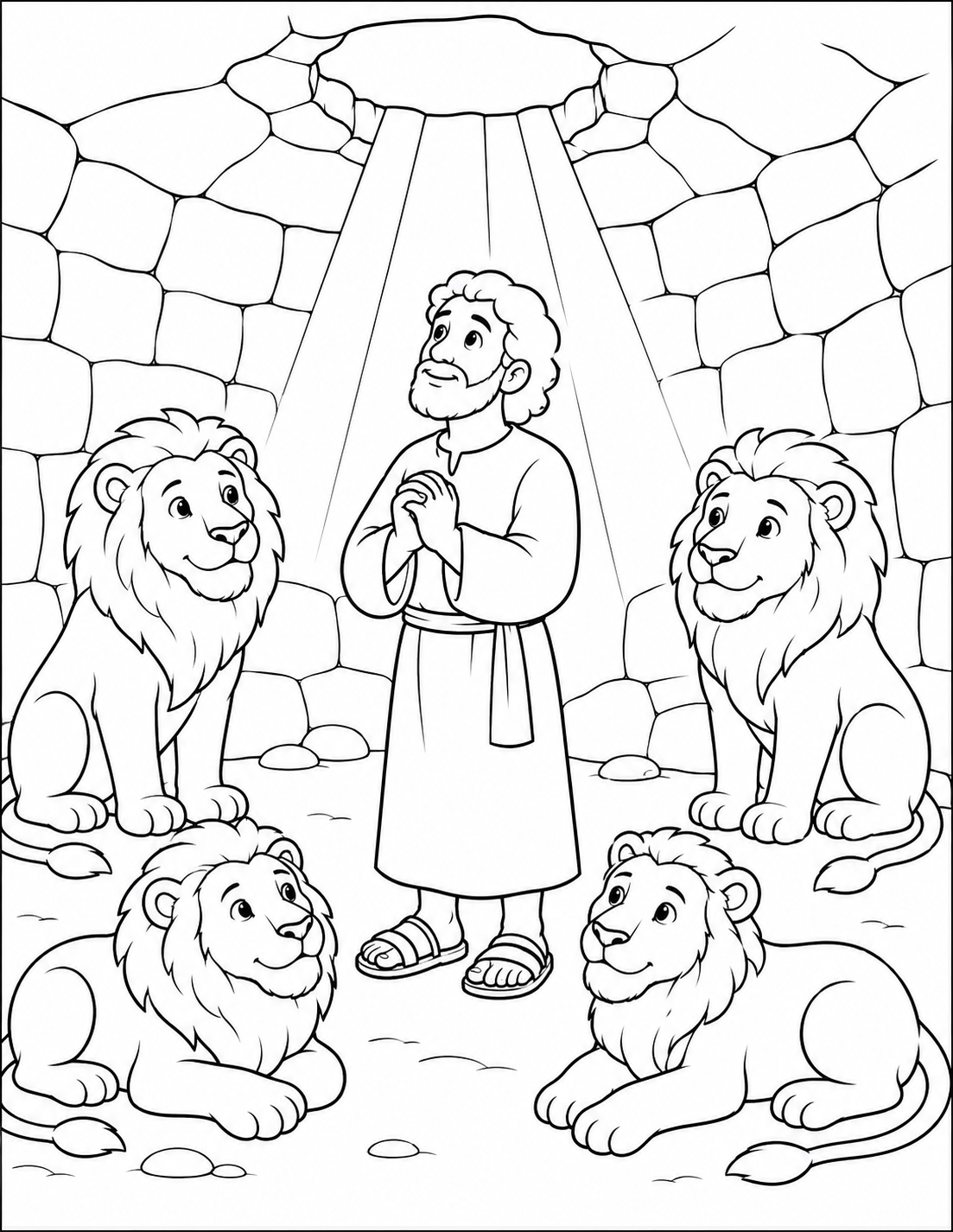
Image 2 turns any Bible story into a clean, printable coloring page in seconds, which saves your volunteers hours of hunting online. Ask for bold black-and-white line art that survives a photocopier:
Create a black-and-white coloring page for children showing Noah's ark with pairs of friendly animals walking up a ramp, a rainbow in the sky, and gentle waves below. Use bold, clean outlines and simple shapes for kids ages 4 to 8 to color. No shading or gray tones, white background, printable at 8.5 x 11 inches, 2550 x 3300 pixels.
Change the story each week and you have a fresh, on-theme activity ready before Sunday morning.
3. Bible-verse quote cards people actually share.
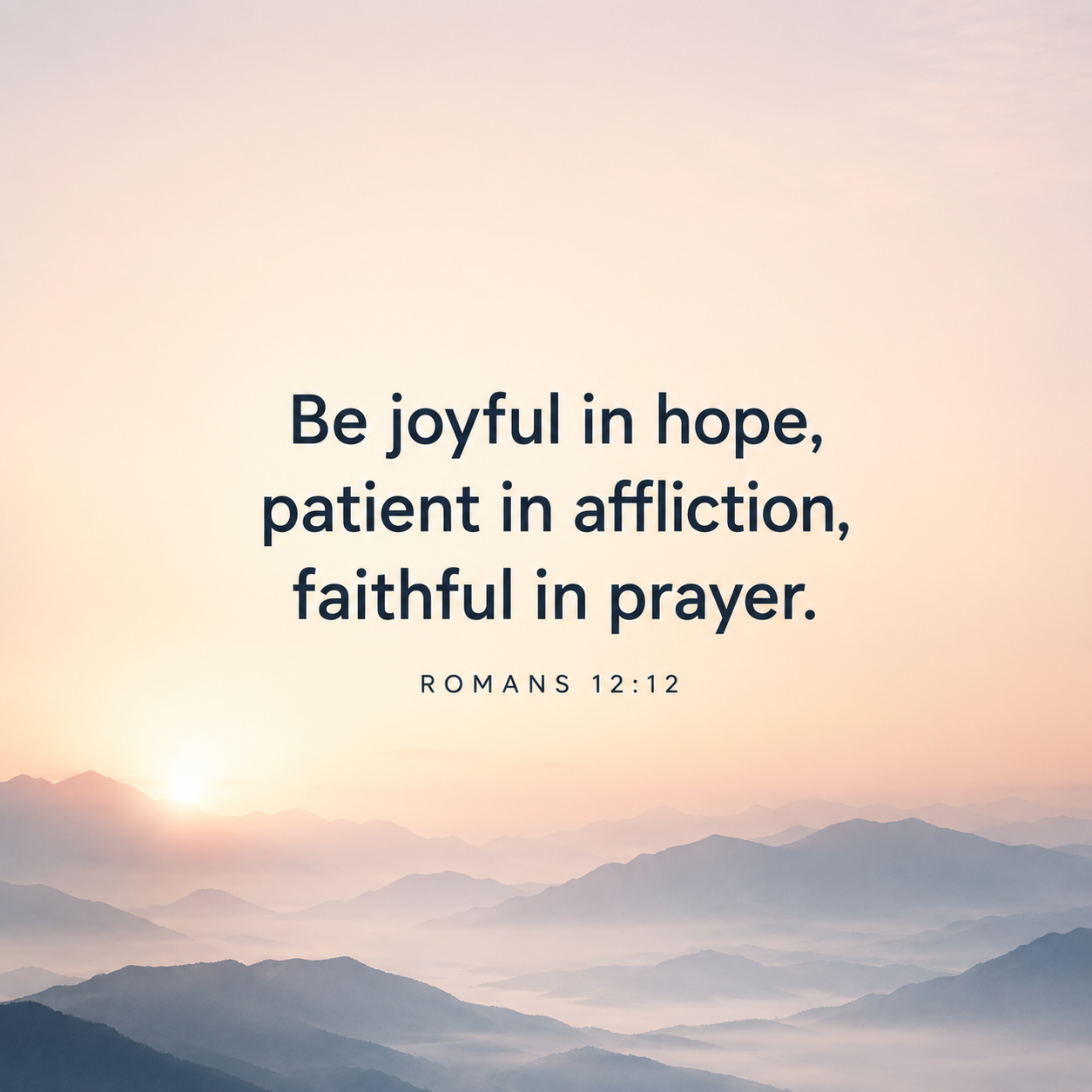
Verse cards remain some of the most shared content in all of ministry.
The trick is a consistent background you can reuse across a whole set, then add your text on top in Canva or right on your phone. Start with the background art:
Create a serene, minimal background graphic for an Instagram quote card, 1080 x 1080 pixels. Use a soft gradient of warm morning light over a subtle mountain landscape, with plenty of open space in the center for adding a Bible verse later. Modern, clean, and calming.
Generate a matching set once, and you have a month of on-brand content ready to go.
You now have three graphics you can make today. Try all three, though, and you will run into the problem that trips up almost every church. Your headshot, your coloring page, and your quote card come out looking like three different ministries made them, each with its own colors, fonts, and feel.
There is one fix for that, and it takes about two minutes to set up. You build a short block of text once, save it, and paste it into every prompt you write from here on.
Every graphic you generate after that matches your church on its own, so your feed, your slides, and your handouts finally look like they belong together.
Here is the exact block, and how to build yours.
⬇️ ⬇️ ⬇️